Showing posts with label Windows. Show all posts

20:43

Microsoft announces 100k apps now in the Windows 8 App Store !!!

Microsoft has announced, via a developer-focused Twitter account, that it has reached the 100k app milestone in the Windows 8 app store. Microsoft announced the Windows 8 store, which would distribute applications to its users much in the way of Apple’s Mac App Store.


                       This milestone puts Microsoft ahead of the pacing of the Windows Phone store, which took a year and a half to get to the same spot. Apple’s Mac App Store, by comparison, was launched 2.5 years ago and is estimated at around 15k apps. The Windows Store (theoretically) passed the Mac App Store some time before November of 2012.

Obviously, this stat going out to developers is both a congratulatory and encouraging move on Microsoft’s part. In this age of laterally integrated systems, having a robust developer community is more important than ever before. Especially as Microsoft has recently made moves to unify the code base necessary for apps to be made available on Windows 8, Windows Phone 8 and the Xbox One, allowing developers to sell their wares across all of the stores with minimal effort.

Via : MJN Tech Web


Read Article

Official Facebook App for Windows 8 is now available..

Good News for Windows 8 users.. A few days back Microsoft's Latest operating system Windows 8.1 Update was available for all windows users.. The Good News is that One of the Most Popular social networking site " Facebook " has released their Facebook App for Windows 8 Users..


Yes, Official Facebook App for Windows 8 users is now available on Windows store for download also it's for free !! Just go to Windows store by using your store app on windows 8 or you can get there directly from the given link below..

Screenshots of

News Feed 

 Timeline


Download

You can download it from Microsoft's Official Website : Download Facebook App for WIndows
Read Article

04:54

How to Download any Website or a Page for Offline Use ???

How to Download Any Websites for offline Use??


As we have shared before " W3Schools Website Completely for Offline Use " , Many of our readers were asking " How can we download any Website or an individual page to use it for offline use without internet connection... ".. So today i am posting it for our readers who are waiting for to know about it...

Why you need Websites or a Webpage offline Use ??

        According to you, it may be for different reasons that why they or you need Websites to Download for offline use!! According to me , If online users need something for some reasons from Internet, they go straight up to Google and get their required info.. what about offline users?? so when they need info they may go to cyber and may want to download it,so that they can use those downloaded websites or pages at home in offline.. So for that reason i am here today..

Let's look for a Best One !!

       There are many ways, software's or may be some other techniques to Download any Web Page or Site for Offline.. lets go for a best and Easiest method..

HTTrack Website Copier


Yes, HTTrack is a software that i am talking about in this post.. i personally prefer this software as it is easy to handle and use without much complications..

HTTrack is a free and open source Web crawler and offline browser , It allows users to download World Wide Web sites from the Internet to a local computer. By default, Ir arranges the downloaded site by the original site's relative link-structure. The downloaded (or "mirrored") website can be browsed by opening a page of the site in a browser.

Compatibility

          If you are using Latest OS Windows 8 or Windows 8.1 , nothing to worry about.. I have tried it.. HTTrack will also work on these too...

Download 

You can Download it from its official website or its available on most of Sites like Softpedia..

Official Website : HTTrack Website
Download Page : Download HTTrack


Read Article

00:46

Microsoft announces 100k apps now in the Windows 8 App Store !!!

Microsoft has announced, via a developer-focused Twitter account, that it has reached the 100k app milestone in the Windows 8 app store. Microsoft announced the Windows 8 store, which would distribute applications to its users much in the way of Apple’s Mac App Store.


                       This milestone puts Microsoft ahead of the pacing of the Windows Phone store, which took a year and a half to get to the same spot. Apple’s Mac App Store, by comparison, was launched 2.5 years ago and is estimated at around 15k apps. The Windows Store (theoretically) passed the Mac App Store some time before November of 2012.

Obviously, this stat going out to developers is both a congratulatory and encouraging move on Microsoft’s part. In this age of laterally integrated systems, having a robust developer community is more important than ever before. Especially as Microsoft has recently made moves to unify the code base necessary for apps to be made available on Windows 8, Windows Phone 8 and the Xbox One, allowing developers to sell their wares across all of the stores with minimal effort.

Via : TheNextWeb..


Read Article

07:59

Windows 8.1 New Features ,Release Date and Price...


            Hi guys,, Before in Post i had shared  about "The Bug Bounty Offer" which is offered by Microsoft.. i..e, "Microsoft will pay up to $100K !! for New Windows Exploit Techniques..." So today
Back again With another topic of the category of Microsoft's Latest Operating System Windows 8.1..


           Windows 8.1 Preview has officially launched at the Microsoft Build developer conference in San Francisco on June 26. The final version will be available as a free downloadable Windows 8 update in Upcoming days...

So let us now talk or take a look about New Windows 8 Features...

1. Interface :

i. Make The Start Screen Yours..

Most of the changes in Windows 8.1 are visible straight from the Start Screen. New sizes of Live Tiles that offer more information or reduce clutter on screen, additional motion backgrounds, and the ability to set any image as the Start Screen wallpaper make for an improved and refined interface. The transition between desktop mode and "Metro" is a lot less jarring now, and there are even options to boot to desktop or set a new All Apps view as the default home page for the Start Screen.

Microsoft appears to be listening to its Windows 8 critics here, making 8.1 a more customizable experience that suits all needs. Altering the new Start Screen takes some getting used to if you're used to the old method, as you have to hold down on Tiles to move and change their size or position. It feels less intuitive than before, but it also prevents accidental swipes and movements so there's a tradeoff involved. The lock screen has also been tweaked to include quick access to the camera, the ability to quickly accept Skype calls, and a slideshow feature that pulls pictures from Sky Drive or the local PC. These features are minor, but good additions for upcoming 7- and 8-inch devices.

ii. Return of Start Button..

 The Start button returns to Windows 8, and if you want you can almost combine it with the All Apps view to create a Start Menu of sorts. The button is simply a visual element that takes you back to the Start Screen, but you can also right click on it and access power user commands and the shutdown or restart options. Its return should help ease one of the usability complaints around Windows 8, but it does very little to change the way you have to interact with the Charms or the recently used apps with a mouse and keyboard. Fortunately the hot corners can be disabled so if you want to totally avoid the "Metro" world then it's possible to do so without third-party software now.

 iii. Side by side, multi-monitor, Miracast

One of the biggest changes in Windows 8.1 is the ability to have greater control over snapped applications. In Windows 8 apps could run side-by-side, but it was rather limited with a roughly 30 / 70 percent split. Microsoft is altering this dramatically in Windows 8.1, allowing apps to snap in a new 50 / 50 mode. You can also change that percentage to better control how much of an app you see on screen. This means it’s possible to snap three, four, or more apps alongside each other. There’s a limit, but it’s based on the number of 500 pixel increments you can fit on a display. On 7- and 8-inch tablets, Windows 8.1 will support the 50 / 50 view in landscape mode, with the majority of improvements aimed at portrait mode and reading scenarios.

Multiple monitor support for Windows 8-style applications has been greatly improved in Windows 8.1. In our testing you can snap multiple apps across multiple displays and even extend a machine wirelessly to a Miracast-compatible display. Microsoft is supporting Miracast natively and it has surfaced as part of the Devices Charm with the project option. Snapping apps on multiple monitors is a little confusing, and dragging apps between monitors doesn’t always have the desired effect. I found that the Start Screen would often jump to the active monitor, making it tricky to arrange apps. Still, the support is welcome and it certainly makes Metro a lot more appealing on desktop and laptop computers without a touchscreen.

iv. Access PC settings from Metro

With Windows 8, you had to use the traditional Windows desktop Control Panel to adjust practically any important setting on the computer, and if you're a power user or find yourself troubleshooting computers often, that might still be the case. But for most tablet users, the new touch-based PC settings will probably be enough for most anything. It's still a bit of a mess of nested options as of the Windows 8.1 preview build, and you might be better off just searching for what you want, but if you're looking to change the screen resolution or how long the computer will sit idle before it goes to sleep, these new menus have you covered.

Screen Shot of New Lock Screen 

2. Search

i. Built-in Bing search

Search has been totally overhauled in Windows 8.1. Bing now powers the interface and underlying algorithms used to discover and fetch data from local PCs and the web. Microsoft has long been investing in desktop search, but it’s moved forward significantly in the 8.1 preview. You can simply type on the Start Screen and you’ll be able to instantly access web queries, recent searches, system settings, files, and other information. If you want to quickly launch an app then you can just type the first few letters and you’ll be presented with it. The search interface appears to favor apps over other content, but it also learns your search habits and adapts accordingly.

Bing Heroes 

Bing Heroes surfaces images, video, and audio content in a stylish way Perhaps the biggest change to search here is a new hero interface powered by Bing. If you search for an artist like Rihanna you’re presented with a full-screen interface that surfaces images, video, and audio content. It’s done so in a useful but stylish way and it will even retrieve data from applications. One particularly impressive part of this search interface is that it shows web links with a thumbnail preview of the site you’re about to click on. If you want to play audio from a particular artist then it jumps straight into Xbox Music, or it will find YouTube videos from the web that are relevant.
News is also presented, alongside key information from Wikipedia. The images can be expanded and viewed separately, and there’s even the option to filter them by color to find the exact image you need. Speaking of images, if you search for a location the new Search experience can even find pictures you may have taken there, surfacing them alongside web results. It’s clear Microsoft has put a lot of thought and effort into this interface, and it has paid off.

3.Apps


i. Mail and Office

Most of the Windows 8 apps are being improved, but one that’s not part of the preview is the Mail app. The company is demonstrating some of the improvements it’s working on, including drag-and-drop support, sweep (which can remove large quantities of older unwanted mail) and the ability to group social and newsletters in one place. The Mail app is clearly starting to take shape into something that’s more usable and powerful to use over on tablets and even desktops. In the preview release the improvements aren’t ready, but Microsoft tells us an updated app will ship with Windows 8.1 later this year. One thing that does work well now is Mail's ability to pop open an app, side-by-side with Mail, to quickly view a web link or attached photo. Metro Office is coming soon

I also saw a brief glimpse of Windows 8-style Office applications which Microsoft is currently working on. Described as an alpha build, Microsoft was only prepared to show off a copy of PowerPoint running a presentation, but the suite should launch for Windows 8.1 tablets later this year.

ii. Spin for better photography


 Microsoft has some pretty intriguing user experiences for snapping shots and editing photos in Windows 8.1. With Photosynth, part of the Camera app, you can take a whole 360 degree photosphere — an entire room floor to ceiling — just by moving the tablet around, as if each image is filling in the pieces of a virtual jigsaw puzzle. The Photosynth software stitches them all together, and the results are surprisingly good. Meanwhile, the Photos app lets you enhance or mute colors through a different circular procedure: you drop a pin on any spot, then rotate a radial dial (which reminds me of OneNote) to adjust the intensity.

iii. Internet Explorer 11

Internet Explorer 11 largely looks the same as its IE10 counterpart. The tab interface has been moved to the bottom, and Microsoft is catching up to the competition with tab sync across Windows 8.1 devices and Windows Phone. WebGL is also supported in Internet Explorer 11, and website owners can create separate Live Tiles that can be pinned to the Start Screen to access RSS feeds.
Unfortunately there are still separate desktop and Metro versions of IE11, and the tabs don't appear to keep in sync between the two. It's an odd disconnect given Microsoft's focus on cloud syncing in 8.1. IE11 will also detect phone numbers on sites so you can call them using apps like Skype, and the app fully supports the new Reading List feature that will let you bookmark web pages for later reading.

iv. Much More like..

Right out of the box, there are a number of new apps in Windows 8.1. Metro-style versions of Alarms, Calculator, and Sound Recorder are all available and the company is also adding Bing Health & Fitness and Bing Food & Drink. Bing’s Food & Drink app is perhaps the most interesting addition. Designed as a recipe book, it includes a unique hands-free mode that lets you swipe between recipe notes to avoid touching a screen with messy fingers. It simply uses a webcam and it will be interesting to see whether this makes its way into additional Windows 8.1 apps.

Price and Download :


Microsoft Has Announced it as a free update for Windows 8..You can Update via Windows store...

or

Choose your Language and Download ISO Files : Windows 8.1 Preview ISO Files..

Read Article

06:55

Microsoft will pay up to $100K !! for New Windows Exploit Techniques....

                Friends If you are looking to end a little extra cash and have the skills and knowledge available to find bugs then you might be interested to hear the latest news that Microsoft is now offering $100,000 for exploits that are discovered in its Windows 8.1 Preview...

               Microsoft has announced that it will pay a $100,000 in cash to anyone who discovers security exploits within their most recent Windows 8.1 operating system together with $50,000 as a bonus if you can also offer defensive suggestions that might be able to block the attack.


                 Recently Microsoft has announced that it will give security researchers cash rewards for devising novel software exploitation techniques, creating new exploit mitigation systems, and finding bugs in the beta of Internet Explorer 11 when it's released...

               Bug bounty programs, where security researchers receive a cash reward from software vendors for disclosing exploitable flaws in those vendors' software, have become an important part of the computer security landscape. Finding flaws and working out ways to exploit them can be a difficult and time-consuming process. Moreover, exploitable flaws have a market value, especially to criminals, as they can be used to propagate malware and attack systems.

               Bounty programs address both concerns. They provide a means for compensating researchers for their efforts, and they provide a market for flaws that won't lead to compromised machines and harm to third parties. Google, Mozilla, Facebook, PayPal, and AT&T, among others, all offer monetary rewards for bug disclosures.

             Until now, Microsoft has shied away from such programs. No longer. The company has announced three separate schemes. One of them is a straightforward bug bounty. When Internet Explorer 11 beta is released on June 26 (as part of the Windows 8.1 beta), Microsoft will pay up to $11,000 (and possibly even more) for any critical vulnerabilities discovered by July 26.

In Detail  The following programs will launch on June 26, 2013 i.e., Tomorrow!!!! :

  • Mitigation Bypass Bounty:  Microsoft will pay up to $100,000 USD for truly novel exploitation techniques against protections built into the latest version of our operating system (Windows 8.1 Preview). Learning about new exploitation techniques earlier helps Microsoft improve security by leaps, instead of capturing one vulnerability at a time as a traditional bug bounty alone would. 
    TIME FRAME: ONGOING
  • Blue Hat Bonus for Defense:  Additionally, Microsoft will pay up to $50,000 USD for defensive ideas that accompany a qualifying Mitigation Bypass submission. Doing so highlights our continued support of defensive technologies and provides a way for the research community to help protect more than a billion computer systems worldwide.
    TIME FRAME: ONGOING (in conjunction with the Mitigation Bypass Bounty).
  • Internet Explorer 11 Preview Bug Bounty:  Microsoft will pay up to $11,000 USD for critical vulnerabilities that affect Internet Explorer 11 Preview on the latest version of Windows (Windows 8.1 Preview). The entry period for this program will be the first 30 days of the Internet Explorer 11 beta period (June 26 to July 26, 2013). Learning about critical vulnerabilities in Internet Explorer as early as possible during the public preview will help Microsoft make the newest version of the browser more secure. TIME FRAME: 30 DAYS..

            This is a program that's broadly comparable to schemes from Google and Mozilla for their browsers. The major difference is the time constraint. Explaining the limited window for submissions, Microsoft says that it wants to ensure that most critical bugs are reported during the beta (when usage of the software and hence the risk due to flaws is low) rather than after release.

            During Internet Explorer 10's development, for example, there were low numbers of critical flaws reported during the beta, a large spike shortly after release, and then more low numbers. Microsoft wants to move that spike into the beta period, and the limited payout window could encourage researchers to look at the software sooner rather than later.

           The company also argues that existing third-party bounty schemes don't really address products in their per-release state. Tipping Point's Zero Day Initiative, for example, offers a way for researchers to be rewarded for disclosing flaws, but only for products that are widely deployed. Paying for bugs during the beta fills this gap.

          Microsoft is doing something a little different from the traditional bug bounty. By focusing on exploit mitigation techniques, the company can learn about both individual problems in specific applications and system-wide issues. Addressing these system-wide issues can shore up the platform by making it harder to exploit flaws in all software on the platform, whether it's written by Microsoft or third parties.

If you want to know more then you can Go to : Microsoft's Security Response Center..


I hope you all found it Helpful..

Join our Facebook Fan Page  .:MJN Tech:.
and
Subscribe for More Latest Updates..

With Regard's
Read Article

00:48

Windows Movie Maker For Windows 7 and Windows 8 Operating System

As you all know Windows movie maker is video editing software from Microsoft windows. Windows movie maker available in Windows XP & Vista. But few days back Microsoft official website added Windows movie maker for Windows 7 & windows 8  Operating system users. Windows Movie Maker is easy to use, you can edit pictures also...Add Transactions,effects etc..


You can get Windows Movie Maker From Microsoft's Official Site : Download Windows Movie Maker..


Subscribe,Share and Comment...

With Regard's ,

Read Article

02:13

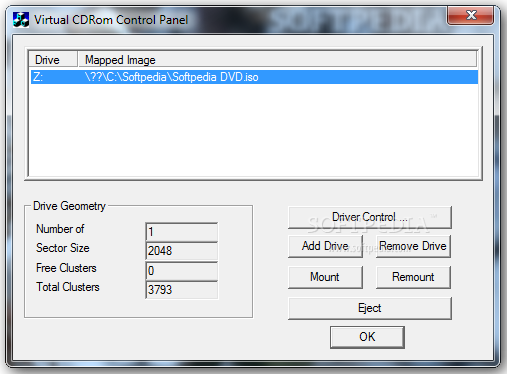
Virtual CD-ROM Control Panel - Tool to Mount ISO Files in Windows XP, Vista and 7


                     As you all know about the Microsoft's latest OS Windows 8 which comes with native support for mounting ISO and VHD (Virtual Hard Disk) files. You just need to double-click on the disk image file and Windows 8 will automatically mount it in Explorer. This feature was unavailable in Previous Versions of Windows.. But now it is.. !!!

                      Recently Microsoft has Released a tool which can perform a similar task like in Windows 8.. Named "Virtual CD-ROM Control Panel"..
            
             This utility enables users of Windows XP, Windows Vista, and Windows 7 to mount ISO disk image files as virtual CD-ROM drives.

"Virtual CD-ROM Control Panel will help you create a virtual CD drive on your hard disk"

"The Driver Control window will provide users with a list of options like Install / Remove Diver or Start / Stop"

                                        "Virtual CD-ROM Control Panel" is a new freeware released by Microsoft which enables users of Windows XP, Vista, and Windows 7 to mount ISO disk image files as virtual CD-ROM drives. This can be highly useful for reading disk images to install software or recover backup files. Windows 8 users do not need this tool as Windows 8 already natively supports ISO files as mentioned above.


Supported operating systems:
  •  Windows XP 
  • Windows Vista 
  • Windows 7
  •  Windows Server 2003
  •  Windows Server 2008
  • Windows Server 2008 R2
You can Download This tool from Microsoft's official site : Download Virtual CD-ROM Control Panel Tool


Subscribe,Share and Comment...

With Regard's ,


Read Article