Showing posts with label Blogger Widgets. Show all posts

08:36

Special Multilevel DropDown Menu With Fading and Easing Effects...

               Before In My Blog I have Posted 2 or More Multilevel and Simple Drop Down Menu..So today I am Here with One More Multilevel Drop Down Menu.. Its With Fading and Easing Effect..


By Looking at this above Preview you may also want to take a look at live demo also.. Yeah!! You can take a look at live demo also below :)


So you can also now add it to your blog..

How to Add To your Blog/Site..

  • Login to your "Blogger Account" and Go to your Blog "Dashboard"...
  • Now Go to "Layout Section" from your "Dashboard"... 
  • Now Click On "Add Gadget" and Select "HTML/Java Script"... 
  • Now Copy and Paste the Below Given Set of Codes in it... 

<link rel="stylesheet" href="https://googledrive.com/host/0B_7JWdEqBhVVR3JEa0d1c3BtSFE"/>
<nav id="nav">
<nav id='nav'> <ul class='menunav' id='navinti'> <li class='mhome'><a href='/'>Home</a></li> <li class='sub'><a href='/'>Categories</a> <ul class='sub-menu hidden'> <li class='multsub'><a href='/search/label/Windows'>Windows</a>
  <ul class='sub-sub-menu hidden'>
    <li><a href='/search/label/Windows XP'>Windows XP</a></li>
    <li><a href='/search/label/Windows 7'>Windows 7</a></li>
    <li><a href='/search/label/Windows 8'>Windows 8</a></li>
    <li><a href='/search/label/Windows News'>Windows News</a></li>
  </ul> </li>
           <li class='multsub'><a href='/search/label/Softwares'>Softwares</a>
    <ul class='sub-sub-menu hidden'>
       <li><a href='/search/label/System'>System</a></li>
       <li><a href='/search/label/Multimedia'>Multimedia</a></li>
       <li><a href='/search/label/Customization'>Customization</a></li>
       <li><a href='/search/label/Designing'>Designing</a></li>
    </ul> </li>
           <li class='multsub'><a href='/search/label/Blogger'>Blogger</a> <ul class='sub-sub-menu hidden'>
     <li><a href='/search/label/Blogger Widgets'>Blogger Widgets</a></li>
     <li><a href='/search/label/Blogger Templates'>Blogger Templates</a></li>
     <li><a href='/search/label/Blogger Tweaks'>Blogger Tweaks</a></li>
     <li><a href='/search/label/Blogger Tools'>Blogger Tools</a></li>
     <li><a href='/search/label/Drop Down Menu'>Drop Down Menu</a></li>
     <li><a href='/search/label/Social Profile Widget'>Social Profile Widgets</a></li> </ul> </li>
       <li><a href='#'>More...</a></li> </ul> </li> <li><a href='http://mjntechtips.blogspot.com/p/blog-page_28.html'>Contact Us</a></li> <li class='singsub'><a href='/'>Tools</a> <ul class='sub-menu hidden'> <li><a href='http://mjntechtips.blogspot.in/p/blog-page_15.html'>HTML Editor</a></li> <li><a href='http://mjntechtips.blogspot.in/p/blog-page_20.html'>Color Code Generator </a></li> </ul>
</li>
</ul></nav>

  • Add The Title As you wish and Click Save!!!!!!!!
That's it all Done...

Customization: 


Now Replace Links Text Highlighted in Color RED with your Link and PINK With your Category Name..


Useful Note:


Important Note:

  • You Can Comment If any Problem Persist.. or Need Help With This Widget..
  • Any Query or Help Related to this or any other related to Blogger Feel Free to Contact Us..
    Within 24 to 48 hours we will get your back the answer for your Question.. .


I hope you all liked and Enjoyed the post..

Join our Facebook Fan Page  .:MJN Tech:.
and
Subscribe for More Latest Updates..

With Regard's
Read Article

09:50

Simple but Dynamic Social Profiles Widget with Subscription Box...

             This Widget is not our own creation but I am sharing it as it looks simple and works superb.. I have also added it to my blog/site.. So you may also add it to your blog/site by using this post...

So let's begin..

Once take a look at live Demo.. Live Demo

How to Add this to blogger..

  • Login to your "Blogger Account" and Go to your Blog "Dashboard"...
  • Now Go to "Layout Section" from your "Dashboard"... 
  • Now Click On "Add Gadget" and Select "HTML/Java Script"... 
  • Now Copy and Paste the Below Given Set of Codes in it... 

<link rel="stylesheet" href="https://googledrive.com/host/0B_7JWdEqBhVVbVlqUEhwZWdXT0U"/>
<center>
<div class="widget social_media">     
<ul>
<li><a class="social_media_icon twitter_icon" href="https://twitter.com/manjunathg17" ></a></li>
<li><a class="social_media_icon facebook_icon" href="http://www.facebook.com/mjntech" ></a></li>
 <li> <a class="social_media_icon gplus_icon" href="https://plus.google.com/117524639868275216387" ></a></li>
 <li><a class="social_media_icon rss_icon" href="http://feedburner.google.com/fb/a/mailverify?uri=mjntech" ></a></li>
</ul></div>
</center>
<div class="widget newsletter clear">
<h3><a href="http://feeds2.feedburner.com/mjntech" >
<img  src="http://dl.dropbox.com/u/72954964/Dynamic%20trick/social%20widget/i_rss.png" alt="" class="i_rss"  /> </a></h3>
<p>If you did like to stay updated with all our latest news please enter your e-mail address here</p>
<div class="newsletter_form_div">
<form class="newsletter_form "  action="http://feedburner.google.com/fb/a/mailverify" method="post"  onsubmit="window.open('http://feedburner.google.com/fb/a/mailverify?uri=mjntech', 'popupwindow', 'scrollbars=yes,width=550,height=520');return false;">
 <div class="newsletter_left">
<input type="text" class="field" value="Email Address for news updates" onfocus="if (this.value == 'Email Address for news updates') {this.value = '';}" onblur="if (this.value == '') {this.value = 'Email Address for news updates';}" name="email" /></div>
<div class="newsletter_right">
<input type="hidden" value="MJN Tech" name="uri"/><input type="hidden" name="loc" value="en_US" />
 <input class="btn_submit" type="submit" name="submit" value="" />
</div><div style="clear:both;"></div>
</form>
</div>
</div>

  • Add The Title As you wish and Click Save!!!!!!!!
That's it all Done...

Customization:


Now Replace Links Text Highlighted in Color Facebook,Twitter,Google+,RSS with your Link and MJN Tech With your Feed Name..


Useful Note:


Important Note:

  • You Can Comment If any Problem Persist.. or Need Help With This Widget..
  • Any Query or Help Related to this or any other related to Blogger Feel Free to Contact Us..
    Within 24 to 48 hours we will get your back the answer for your Question.. .
Read Article

03:05

Add New Google+ Follow Badge of your Profile,Page or Community to your Blog/Website ...


           Recently I have posted about the Introduction of New Google+ Follow Button by Google on its 2nd year Anniversary  of Google+.. i.e., "Google rolls out a new Google+ Follow button for sites and new badges for Communities, Pages, and Profiles ..." so i have mentioned at the end of above mentioned post that I'm gonna post a widget of Google+ Follow Button.. Hence today I will show how to do it..


So lets begin.. Basically Follow below steps to add gadget to your blog..

  • First Go to "Blogger" and Go to Blog "Dashboard"..
  • Now go to "Layout Section" From your "Dashboard"..
  • Now Click on "Add gadget" and Select "HTML/Java Script" from the List..
  • Now copy the Below set of codes and paste it..
  • Give the Title As you like..

Profile Code: 

Live Demo:


<div class="g-person" data-width="251" data-href="https://plus.google.com/102010470664399562190" data-rel="author"></div>

<script type="text/javascript">
  (function() {
    var po = document.createElement('script'); po.type = 'text/javascript'; po.async = true;
    po.src = 'https://apis.google.com/js/plusone.js';
    var s = document.getElementsByTagName('script')[0]; s.parentNode.insertBefore(po, s);
  })();
</script>


Community Code:

Live Demo:


<div class="g-community" data-width="251" data-href="https://plus.google.com/113121168842535305114?3" data-showtagline="false" data-showphoto="false"></div>

<script type="text/javascript">
  (function() {
    var po = document.createElement('script'); po.type = 'text/javascript'; po.async = true;
    po.src = 'https://apis.google.com/js/plusone.js';
    var s = document.getElementsByTagName('script')[0]; s.parentNode.insertBefore(po, s);
  })();
</script>

 Removed Description and Profile Image of Community.. because it will look good now..

Page Code:

Live Demo :


<div class="g-page" data-width="250" data-href="//plus.google.com/113121168842535305114" data-rel="publisher"></div>

<script type="text/javascript">
  (function() {
    var po = document.createElement('script'); po.type = 'text/javascript'; po.async = true;
    po.src = 'https://apis.google.com/js/plusone.js';
    var s = document.getElementsByTagName('script')[0]; s.parentNode.insertBefore(po, s);
  })();
</script>


That's it All Dine!!


Customization:

  • Now Change The link highlighted in RED with appropriate Profile , Page or Community link..
  • If you want to adjust the width the change the value highlighted in BLUE..
Read Article

06:40

Awasome 3D Transaction Social Widget on Mosue Hover Version 2..!!!


         Hi Guys Today I am here with one more CSS3 3D Transaction Widget.. Its The Modification or Let's say  before Version of the "Awesome 3D Transaction Social Widget on Mosue Hover..!!!"  ..


  Take A look at it..How it Looks.. Live Demo


 So If you are New To My Blog you can have a look at my Previous Post Similar to this @


So before Lets Begin as Usuall


How To Add This Widget This your Blog: 

  • Login to your "Blogger Account" and Go to your Blog "Dashboard"...
  • Now Go to "Layout Section" from your "Dashboard"...
  • Now Click On "Add Gadget" and Select "HTML/Java Script"...
  • Now Copy and Paste the Below Given Set of Codes in it...
<link rel="stylesheet" href="https://googledrive.com/host/0B_7JWdEqBhVVbThSWkRoNDZQc00"/>
                          
<div class="maincont">

<div class="container">
          
<ul class="ch-grid">
<li>
<div class="ch-item ch-img-1">              

<div class="ch-info-wrap">

<div class="ch-info">

<div class="ch-info-front ch-img-1"></div>

<div class="ch-info-backfb">

<h3>Facebook</h3>
<a href="https://facebook.com/mjntech">Like Our Facebook Page</a>
</div>
    </div>
        </div>
            </div>
    </li>

<li>

<div class="ch-item ch-img-2">
  
<div class="ch-info-wrap">
  
<div class="ch-info">
      
<div class="ch-info-front ch-img-2"></div>

<div class="ch-info-backgp">
                                      
<h3>Google+</h3>
                              
<a href="https://plus.google.com/117524639868275216387">Add us on Google+</a>
                          
</div>
                              
</div>
                          
</div>
                      
</div>
                  
</li>
                  
<li>
                      
<div class="ch-item ch-img-3">
                          
<div class="ch-info-wrap">
                              
<div class="ch-info">
                                  
<div class="ch-info-front ch-img-3"></div>
                                  
<div class="ch-info-backtw">
                                      
<h3>Twitter</h3>
<a href="http://twitter.com/manjunathg17">Follow on Twitter</a>
</div>
                              
</div>
                          
</div>
                      
</div>
                  
</li>
              
</ul>
              
</div>

</div>
  • Add The Title As you wish and Click Save!!!!!!!!
That's it all Done...

Customization: 

Now Replace Links Text Highlighted in Color Facebook,Twitter,Google+ with your Link..


Useful Note:

Important Note:


  • You Can Comment If any Problem Persist.. or Need Help With This Widget..
  • Any Query or Help Related to this or any other related to Blogger Feel Free to Contact Us..
    Within 24 to 48 hours we will get your back the answer for your Question.. .


I hope you all liked and Enjoyed the post..

Join our Facebook Fan Page  .:MJN Tech:.
and
Subscribe for More Latest Updates..

With Regard's
Read Article

22:15

Awasome 3D Transaction Social Widget on Mosue Hover..!!!


         Hi guys after a long time ..May be a month I am once again back with New and Effective CSS3 Widgets !!!.. This is also one of the Widget which Join's the Category of "My Own Creation"  ..

           I am Very Much Exited to post or share this Widget.. Because this is my most favourite widget with awasome css3 transactions effect..Thanks to "Codrops" for sharing CSS3 Hover Effect Tutorials ..Which Inspited me to make this widget...


           Take A look at it..How it Looks.. Live Demo

          This Widget has Two Versions.. One is colored and other is Non-Colored Version. Only with color code this two varies.. You can also change the Colors According to your Wish or Your Template..You can use our Blog's "HTML Modifier or Editor" to edit HTML and CSS and for Color Codes you can try Our Blog's "Hexadecimal Color Code Generator"...

OK!! Let's Begin as Usual..


How To Add This Widget This your Blog: 

  • Login to your "Blogger Account" and Go to your Blog "Dashboard"...
  • Now Go to "Layout Section" from your "Dashboard"...
  • Now Click On "Add Gadget" and Select "HTML/Java Script"...
  • Now Copy and Paste the Below Given Set of Codes in it...

<link rel="stylesheet" href="https://googledrive.com/host/0B_7JWdEqBhVVdk11eHpTT0xyd28"/>

<div class="maincont">
<div class="container">
<section class="main">
<ul class="ch-grid">
<li>
<div class="ch-item">              
<div class="ch-info">
<div class="ch-info-front ch-img-1"></div>
<div class="ch-info-backfb">
<h3>Facebook</h3>
<p>Like Our Page .:MJN Tech:.<a href="http://facebook.com/mjntech">Like us On Facebook</a></p>
</div>  
</div>
</div>
</li>
 <li>
 <div class="ch-item">
<div class="ch-info">
<div class="ch-info-front ch-img-2"></div>
<div class="ch-info-backgp">
 <h3>Google+</h3>
<p>Add Us To your Circle<a href="https://plus.google.com/117524639868275216387">Add Us On Google+</a></p>
 </div>
 </div>
</div>
</li>
<li>
<div class="ch-item">
<div class="ch-info">
<div class="ch-info-front ch-img-3"></div>
<div class="ch-info-backtw">
<h3>Twitter</h3>
<p>Join Us on Twitter<a href="http://twitter.com/manjunathg17">Follow Us on Twitter</a></p>
</div>
</div>
 </div>
</li>
 </ul>
</section></div>
</div>

  • Add The Title As you wish and Click Save!!!!!!!!
That's it all Done...

Customization: 

Now Replace Links Text Highlighted in Color Facebook,Twitter,Google+ with your Link..


Useful Note:

Important Note:


  • You Can Comment If any Problem Persist.. or Need Help With This Widget..
  • Any Query or Help Related to this or any other related to Blogger Feel Free to Contact Us..
    Within 24 to 48 hours we will get your back the answer for your Question.. .


I hope you all liked and Enjoyed the post..

Join our Facebook Fan Page  .:MJN Tech:.
and
Subscribe for More Latest Updates..

With Regard's
Read Article

02:15

Simple but Cool & Awesome CSS3 Social Profile Widget with Zooming and Shrinking Effect ..


                         Today I am Adding One More Widget For "My Own Creation Group or Category".. As you all know I have 3 Widgets of My Own Creation in Before Posts.. So Today Let Me Share My Fourth Widget ..Its Simple Widget Made Using "CSS3" Effects..


Animated Preview :

Also See : How to Create Animated GIF Like Previewing Below..


This Widget Is Made Using the Concept Of Combined CSS3 Tutorials of Different Sites.. Thanks to them.. 

Live Demo ↓ :

So Now Lets get Started !!!

How to add this Widget to your Blog..
  • First Go to "Blogger" >> Then Go to your Blog "Dashboard"..
  • Now Click on Layout Section in the Left Side of your Blog "Dashboard"..
  • Now click on "Add Gadget" ..
  • You will get Many Options ..Scroll Down And Click on to "HTML/Java Script"..
  • Now Paste The Below Code in it..

<link rel="stylesheet" href="https://googledrive.com/host/0B_7JWdEqBhVVN0NkbjZoUGctRFU"/>
<br />
<ul class="ca-menuf">
<li>
<a href="https://facebook.com/mjntech">
<div class="ca-contentf">
<h2 class="ca-mainf">
Facebook</h2>
<h3 class="ca-subf">
Like Us on Facebook</h3>
</div>
</a>
</li>
</ul>
<ul class="ca-menut">
<li>
<a href="https://twitter.com/manjunathg17"><div class="ca-contentt">
<h2 class="ca-maint">
Twitter</h2>
<h3 class="ca-subt">
Follow Us on Twitter</h3>
</div>
</a>
</li>
</ul>
<ul class="ca-menug">
<li>
<a href="https://plus.google.com/u/0/116155905562588571799"><div class="ca-contentg">
<h2 class="ca-maing">
Google+</h2>
<h3 class="ca-subg">
Add Us on Google+</h3>
</div>
</a>
</li>
</ul>
<ul class="ca-menur">
<li>
<a href="https://feedburner.google.com/fb/a/mailverify?uri=mjntech"><div class="ca-contentr">
<h2 class="ca-mainr">
RSS</h2>
<h3 class="ca-subr">
Subscribe  Us on RSS</h3>
</div>
</a>
</li>
</ul>
<script src="http://ajax.googleapis.com/ajax/libs/jquery/1.6.4/jquery.min.js" type="text/javascript"></script>


  • Now click save..That's it ..all Done!!


  •   Customization :

    • Now Replace Links Text Highlighted in Color Facebook,Twitter,Google+,RSS with your Link.. 


    Useful Note:

    • Update !!!!!!!! Made the CSS Code Shorter by Adding Link..
    • You can Also  Edit this Widget like Width,Colour etc using HTML Editor of our Blog   : HTML Editor..
    • You can Use Hexadecimal Color Code  Generator of our Blog to Replace Colors  : HexaDecimal Color Code Generator..


    Important Note:

    • You Can Comment If any Problem Persist.. or Need Help With This Widget..
    • Also in Some Templates it may not be perfect.. In that Case Contact me..


    I hope you have found this post helpful..
    Don't forget to Subscribe , Comment and Share this post..
    With Regard's ,

    Read Article

    05:13

    Animated CSS3 Metro UI Drop Down Menu With Sliding Tiles Effect v1.0 by MJN..

                         I have Posted My First Two Creation Using CSS3   Earlier In my Posts Before,, Those are
    1.  Metro UI Social Profile and Search Box with Zoom & Glow Effects Widget v1.0 by MJN For Blogger ..
    2.  Simple and Stylish Ribbon UI Social Profile Widget v1.0 by MJN For Blogger..
    So after Working on Those Two Metro UI and Ribbon UI Widgets today  I am Here With One More Metro UI Drop Down Menu Using CSS3.. 


    I think and Hope you all Will Like it..    Take A Live Preview    Live Demo

    So let me Share you this Awesome Drop Down Menu.. 

    How to Add this to your Blog:

    • First Go to "Blogger" and Go to  your Blog Dashboard..
    • Now Click On "Layout" In Left Side of your Blog..
    • Now Click on "Add Gadget"..
    • You Will Get Many Widgets..Scroll Down to "HTML/JavaScript"..
    • Click On "HTML/JavaScript"..
    • Now Paste This Below Set of Code in it..


    <!doctype html public "-//W3C//DTD XHTML 1.0 Strict//EN" "http://www.w3.org/TR/xhtml1/DTD/xhtml1-strict.dtd">


    <link rel="stylesheet" href="https://googledrive.com/host/0B_7JWdEqBhVVNTFlRld1RUpVeUE"/>


    <div class="mjn-metro-menu">

    <!-- defining top menu elements -->
    <ul class="navi">
     <li id="n1"><a class="mjn-tab1" href="http://mjntechtips.blogspot.in/" title="Home" ></a>
    <!-- defining sub menu elements --><ul class="sub">
     <li class="l"><a class="mjn-fb" href="https://www.facebook.com/mjntech" title="Like Us on Facebook"></a></li>
     <li class="c"><a class="mjn-tw" href="https://www.twitter.com/manjunathg17" title="Follow Us on Twitter"></a></li>
      <li class="r"><a class="mjn-g" href="https://plus.google.com/u/0/116155905562588571799"></a></li>
    <li class="r1"><a class="mjn-rss" href="https://feeds.feedburner.com/mjntech"></a></li>
    </ul>
    </li>
    <li id="n2"><a class="mjn-tab2" href="http://mjntechtips.blogspot.in/search/label/" title="Tags" ></a>
    <ul class="sub">
    <li class="l"><a class="mjn-tab2sub" href="http://mjntechtips.blogspot.in/search/label/Windows"title="Windows"><span>Windows</span></a></li>
    <li class="c"><a class="mjn-tab2sub" href="http://mjntechtips.blogspot.in/search/label/Blogger" title="Blogger"><span>Blogger</span></a></li>
     <li class="r"><a class="mjn-tab2sub" href="http://mjntechtips.blogspot.in/search/label/CSS3" title="CSS/HTML"><span>CSS/HTML</span></a></li>
    <li class="r1"><a class="mjn-tab2sub" href="http://mjntechtips.blogspot.in/search/label/Softwares" title="Softwares"><span>Softwares</span></a></li>
    </ul>
    </li>
    <li id="n3"><a class="mjn-tab3" href="mjntechtips.blogspot.in/2013/" title="Blog Archive" ></a>
    <ul class="sub">
    <li class="l"><a class="mjn-tab3sub" href="mjntechtips.blogspot.in/2013/"><span>2013</span></a></li>
    <li class="c"><a class="mjn-tab3sub" href="mjntechtips.blogspot.in/2013/"><span>2012</span></a></li>
    <li class="r"><a class="mjn-tab3sub" href="mjntechtips.blogspot.in/2013/"><span>2011</span></a></li>
    <li class="r1"><a class="mjn-tab3sub" href="mjntechtips.blogspot.in/2013/"><span>2010</span></a></li>
    </ul>
    </li>
    <li id="n4"><a class="mjn-tab4" href="http://mjntechtips.blogspot.in/p/blog-page.html" title="Contact Us" ></a>
    <ul class="sub">
    <li class="l"><a class="mjn-tab4sub" href="#"><span>LINK 1</span></a></li>
    <li class="c"><a class="mjn-tab4sub" href="#"><span>LINK 2</span></a></li>
    <li class="r1"><a class="mjn-tab4sub" href="#"><span>LINK 3</span></a></li>
    <li class="r"><a class="mjn-tab4sub" href="#"><span>LINK 4</span></a></li>
    </ul>
    </li>
    <li id="n5"><a class="mjn-tab5" href="#" ><span></span></a>
    </li>
    </ul>
    <div style="clear:both"></div>
    </div>
    </!doctype>


    • Now Click Save and Drag it to your desired position..


      Customization :

    • Now Replace Links Text Highlighted in Color Facebook,Twitter,Google+,RSS and other in Red with your Link.. 
    • Replace the Names Highlighted in  Pink with your Words appropriate to link given..
    •  


    Useful Note:


    Important Note:
    • You Can Comment If any Problem Persist.. or Need Help With This Widget..
    • This will be updated soon  with much more Menu's i.e.,Multilevel As soon as possible.
    • So Join our Blog and Subscribe for latest news updates..


    I hope you have found this post helpful..
    Don't forget to Subscribe , Comment and Share this post..
    With Regard's ,

    Read Article

    23:29

    Simple and Stylish Ribbon UI Social Profile Widget v1.0 by MJN For Blogger..

                               As you all know My First Attempt in CSS3 was and also is "Metro UI Social Profile and Search Box with Zoom & Glow Effects Widget v1.0 by MJN For Blogger " .. So I am here Today with another Social Profile Widget which is one of "MY Own Creation" with Ribbon UI..


    Live Demo of Ribbon UI Social Profile Widget..


    So After Previewing Live Demo I think you are "Happy!!" to add it to your Blog or Site..

    Let's Begin !!!!!!

    How to   Add Ribbon UI Social Profile Widget For Blogger :
    • First Go to "Blogger" and then go to your Blog "Dashboard"..
    • Now go to "Layout Section" which is in Left side of your Blog "Dashboard"..
    • Now click on "Add Gadget" .. Scroll Down and Click on "HTML/JavaScript"..
    • Now Paste the Below Code in it..
    <style>
    .mjn-social_ribbon_icons a{
        width:48px;
        height:100px;
        margin-top:10px;
        display:inline-block;
        text-indent:-9999em;
        background-position:0 0;
        background-repeat:no-repeat;
        z-index:2000;
        overflow:hidden;
    }
    .twitter{ background:url('https://blogger.googleusercontent.com/img/b/R29vZ2xl/AVvXsEi0cZMJ0OQHAoSrwSAGkpDL7NiXlsnY8i9Jr5ds0MDfslaLFVfKKarUZKgmlhVaq_azpmaSNtqFhY9mkTOtqAf0FjYYoBa795zxX99_n6R0Nk8r1kG3KdKssKaayXD9ufXQZ-UV8d3TO4E/h120/Twitter+R.png'); margin-bottom:10px; }
    .facebook{ background:url('https://blogger.googleusercontent.com/img/b/R29vZ2xl/AVvXsEg0V1kKMgntgzk-291iMoQyBf6RcXBVU6p1ss9HVnbgNQ45Orr5CRwt1HY3YTtUUhqEzJWhjOLk8JJ5wh22Goay29tObSyrtGrwPZHWLPbln_Q3rVVzFf6k0BBsbFVVfYa4F4MFsRVfnvk/h120/Facebook+R.png'); margin-bottom:10px; }
    .google{ background:url('https://blogger.googleusercontent.com/img/b/R29vZ2xl/AVvXsEjC_q8sdyba3ds_kAbQQDSPFxZuPgE-bXCS2BCwqzTNJ1CWMDmaL0bKCZ43bF9xGilCmpGx5CkwMLNiSMWK5oEBDPd4hQ868Mjcaff2zrwX6wtMW8z0vhQeHmfkne2HfB7LpumZvdsmmcw/h120/Google++R.png'); margin-bottom:10px; }
    .rss{ background:url('https://blogger.googleusercontent.com/img/b/R29vZ2xl/AVvXsEjepMpUiHMGCx3t2jVR_4R5bUwpLooX82NY-3AWLkKJ7fkIRvTmRl7hsAy6wRAv5svIW91DGGXTUM2emwz82DNRryq81PN-LMGKBc662IT6UUl4r6D30nCZ0D7Im3N338UBA_qLYy77FdA/h120/RSS+R.png'); margin-bottom:10px; }
    .twitter:hover{
    border-top: 2px solid transparent;
    box-sizing:border-box;
    -moz-box-sizing:border-box;
    -webkit-box-sizing:border-box;

    }
    .facebook:hover{
    border-top: 2px solid transparent;
    box-sizing:border-box;
    -moz-box-sizing:border-box;
    -webkit-box-sizing:border-box;
    }
    .google:hover{
    border-top: 2px solid transparent;
    box-sizing:border-box;
    -moz-box-sizing:border-box;
    -webkit-box-sizing:border-box;
    }
    .rss:hover{
    border-top: 2px solid transparent;
    box-sizing:border-box;
    -moz-box-sizing:border-box;
    -webkit-box-sizing:border-box;
    }
    </style>
       
    <div class="mjn-social_ribbon_icons">
    <a href="http://www.facebook.com/mjntech" class="facebook" title="Follow us on Facebook">Facebook</a>
    <a href="http://www.twitter.com/manjunathg17" class="twitter" title="Follow us on Twitter">Twitter</a>
     <a href="https://plus.google.com/u/0/116155905562588571799" class="google" title="Follow us on Google+">Google+</a>
    <a href="http://feeds.feedburner.com/mjntech" class="rss" title="Subscribe Us on RSS">RSS</a>
        </div>


  • Now click save..That's it ..all Done!!


  •   Customization :

    • Now Replace Links Text Highlighted in Color Facebook,Twitter,Google+,RSS with your Link.. 


    Useful Note:


    Important Note:
    • You Can Comment If any Problem Persist.. or Need Help With This Widget..


    I hope you have found this post helpful..
    Don't forget to Subscribe , Comment and Share this post..
    With Regard's ,

    Read Article

    04:45

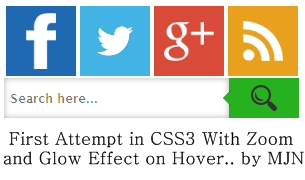
    Metro UI Social Profile and Search Box with Zoom & Glow Effects Widget v1.0 by MJN For Blogger ..

                          You may have Seen Many CSS3 Widgets in my before Posts of my blog.. If you are new to my blog .:MJN Tech:. you can have a look at my before posts.. and also subscribe for Much More Latest Updates.. Before Posts of CSS3 Category was not made by my own but shared it  so that it will be helpful to you all..
                           But Today's I am here to share My First Attempt In Making Widgets Using CSS3 & HTML.. Hope you all like it and also thinking to update it using much more effects lately..

    So let's get back to it..

    First attempt in CSS3, Zoom and Glowing Effect Widget by MJN

    Here is a Live Demo :  Make Sure That the Images Loads completely..


  • How to add this to your Blog ?? Here it is..
    • Go to Blogger and go to your blog..
    • Now go to Layout in Left side of your Blogger Dashboard..
    • Now click on Add Gadget and Choose HTML/JavaScript..
    • Now paste the Below Set of codes in it..
    <style>
    .mjn-metro-social
    {
    width:300px;
    }
    .mjn-metro-social li
    {
    position:relative;
    cursor:pointer;
    padding:0;
    list-style:none;
    }
    .mjn-metro-social .fb,.tw,.gp,.pi,.in,.yt,.fd
    {
    z-index:7;
    float:left;
    margin:2.5px;
    position:relative;
    display:block;
    }
    .mjn-metro-social .tw
    {
    background:url(https://blogger.googleusercontent.com/img/b/R29vZ2xl/AVvXsEjQulwbBMnKmsfRx0POzvWB2L96NKXsX7LZjoxQ33GNAcX7So9NFRAiG6Fe3R7nC42HksQLkgMY4SofZRzchlbbW_dGnRFBtx5t5entIzhlcytb1m94ojaaX_xBL2JAzoJMl5wH-Qu7Xuw/h120/twitter-bird-dark-bgs.png) no-repeat center center #43b3e5;
    width:70px;
    height:70px;
    -webkit-transition: box-shadow .3s linear, background .2s linear;
    -moz-transition: box-shadow .3s linear, background .2s linear;
    -ms-transition: box-shadow .3s linear, background .2s linear;
    -o-transition: box-shadow .3s linear, background .2s linear;
    transition: box-shadow .3s linear, background .2s linear;
    }
    .mjn-metro-social .fb
    {
    background:url(https://blogger.googleusercontent.com/img/b/R29vZ2xl/AVvXsEig0PkzBvJ6yX3wb3bA-FnBs3mldrtIpOsKEOmSWPAniZThvUnV75mjGu8ZnA5a2Scx_f9Z-om5OP57CPaGbsj9rKbY1I0KVT_imrB47BFIjiw9xAk_uMf4Go4aCUmsMz0nnJ2yMLoBVZ8/h120/facebookf.png.png) no-repeat center center #1f69b3;
    width:70px;
    height:70px;
    -webkit-transition: box-shadow .3s linear, background .2s linear;
    -moz-transition: box-shadow .3s linear, background .2s linear;
    -ms-transition: box-shadow .3s linear, background .2s linear;
    -o-transition: box-shadow .3s linear, background .2s linear;
    transition: box-shadow .3s linear, background .2s linear;
    }
    .mjn-metro-social .gp
    {
    background:url(https://blogger.googleusercontent.com/img/b/R29vZ2xl/AVvXsEii2BXQh4OB62iwqr6bxaehbhAYmpzMa6iqzFVuT9KaIitHepXXhcCI6FkjOfbFV31PGat-8ivlSibqnqzYrcXcd-NFFluDQXePnX47zVrnZsoo_SE6c40BIhyphenhyphenbY2LhYLWrNbnbA0OxT00/h120/google+plus.png) no-repeat center center #da4a38;
    width:70px;
    height:70px;
    -webkit-transition: box-shadow .3s linear, background .2s linear;
    -moz-transition: box-shadow .3s linear, background .2s linear;
    -ms-transition: box-shadow .3s linear, background .2s linear;
    -o-transition: box-shadow .3s linear, background .2s linear;
    transition: box-shadow .3s linear, background .2s linear;
    }
    .mjn-metro-social .fd
    {
    background:url(https://blogger.googleusercontent.com/img/b/R29vZ2xl/AVvXsEiSWik21LDLYj6zRL0FnbdbT_B6IeTwEkK2L95p4b59u2u6DZLu3MmNwUl5uzoweLXsLHP5S-NDfxU0qFaJw6T6w7o2UGElDUMw9DYpN2J2kCI4zJIhJiNP8pi7YRKbCiTgIxcTLdI32QA/h120/feed.png) no-repeat center center #e9a01c;
    width:70px;
    height:70px;
    -webkit-transition: box-shadow .3s linear, background .2s linear;
    -moz-transition: box-shadow .3s linear, background .2s linear;
    -ms-transition: box-shadow .3s linear, background .2s linear;
    -o-transition: box-shadow .3s linear, background .2s linear;
    transition: box-shadow .3s linear, background .2s linear;
    }
    .mjn-metro-social li:hover .fb
    {
    background:url(https://blogger.googleusercontent.com/img/b/R29vZ2xl/AVvXsEhoufjylJBmxED6WGURsnNgtpBOyWSqC-SmKMlIdsyh_IwyJhnrBgwFeGI4QEtny3oFetBqZgHO7snxAJYtdIm-ZSEtNK7Q1-DyUf1GNW6X4eZ3KlTiL1wYi4cBtEPsKJBqSvplEzyGVVs/h120/facebookfh.png) no-repeat center center #1f69b3;
     box-shadow:0px 0px 6px 3px #217BC0;
    -webkit-box-shadow:0px 0px 6px 3px #217BC0;
    -moz-box-shadow:0px 0px 6px 3px #217BC0;
    -o-box-shadow:0px 0px 6px 3px #217BC0;
    -ms-box-shadow:0px 0px 6px 3px #217BC0;
    }
    .mjn-metro-social li:hover .tw
    {
    background:url(https://blogger.googleusercontent.com/img/b/R29vZ2xl/AVvXsEhXkUZeAqg6YBHVBNkDTurN2yeGTnC2K9KQT9VC7OULvF4ycuKo27_68Hq-tsMDJWC1eRRKeu-R6DP8gn0FguTsUzEDu4POC4_cwqc5Q3_sU7GhU3-cYBmy_uYBzS4090wRCYwtXs-CyQ4/h120/twitter-bird-dark-bgsx.png) no-repeat center center #43b3e5;
     box-shadow:0px 0px 6px 3px #38D1F7;
    -webkit-box-shadow:0px 0px 6px 3px #38D1F7;
    -moz-box-shadow:0px 0px 6px 3px #38D1F7;
    -o-box-shadow:0px 0px 6px 3px #38D1F7;
    -ms-box-shadow:0px 0px 6px 3px #38D1F7;
    }
    .mjn-metro-social li:hover .gp
    {
    background:url(https://blogger.googleusercontent.com/img/b/R29vZ2xl/AVvXsEhWtxhYdCkrpw9XOb_o2ZrFnC6MdR2FL6_MAoT1D2AO6E4QPvehzSQAg5Nu67vWXZU1brCbBkYJ9rKTXCh782N1IiQdeRDCKS8ZkRAkous_Vsor2l04fw9_k5fMqP-HaQPTxTzg1sDUHxg/h120/google+plush.png) no-repeat center center #da4a38;
     box-shadow:0px 0px 6px 3px #F43431;
    -webkit-box-shadow:0px 0px 6px 3px #F43431;
    -moz-box-shadow:0px 0px 6px 3px #F43431;
    -o-box-shadow:0px 0px 6px 3px #F43431;
    -ms-box-shadow:0px 0px 6px 3px #F43431;
    }
    .mjn-metro-social li:hover .fd
    {
    background:url(https://blogger.googleusercontent.com/img/b/R29vZ2xl/AVvXsEhx9RPW5iPvlSbYtgEJg_2-IcrmvKXN9Mo2D98Z1FPQJMsucDjDghuLobivNokqsnf0bZ4nNOT53TIzbz6F18ZnqkTmjOE_pbAZ2b-7EgAnBhT-N6lfHpNp1P8ysE0Tel2gvb_o51KgKoU/h120/feedh.png) no-repeat center center #e9a01c;
     box-shadow:0px 0px 6px 3px #e9a01c;
    -webkit-box-shadow:0px 0px 6px 3px #e9a01c;
    -moz-box-shadow:0px 0px 6px 3px #e9a01c;
    -o-box-shadow:0px 0px 6px 3px #e9a01c;
    -ms-box-shadow:0px 0px 6px 3px #e9a01c;
    }
    .cf:before, .cf:after{
        content:"";
        display:table;
    }
    .cf:after{
        clear:both;
    }
    .cf{
        zoom:1;
    }  
    /* Form wrapper styling */
    .form-wrapper {
        width: 280px;
    }
    /* Form text input */
    .form-wrapper input {
        width: 215px;
        height: 20px;
        padding: 10px 5px;
        float: left; 
        font: bold 12px 'lucida sans', 'trebuchet MS', 'Tahoma';
        border: 0;
    box-shadow: 0 0 6px rgba(0,0,0,.3) inset;
    webkit-transition: box-shadow .3s linear, background .2s linear;
    -moz-transition: box-shadow .3s linear, background .2s linear;
    -ms-transition: box-shadow .3s linear, background .2s linear;
    -o-transition: box-shadow .3s linear, background .2s linear;
    transition: box-shadow .3s linear, background .2s linear;
    }
    .form-wrapper input:focus {
        outline: 0;
        background: #fff;
        border-color: #51a7e8;
       box-shadow: 0 0 2px rgba(0,0,0,.8) inset;
    }
    .form-wrapper input::-webkit-input-placeholder {
       color: #999;
       font-weight: normal;
       font-style: italic;
    }
    .form-wrapper input:-moz-placeholder {
        color: #999;
        font-weight: normal;
        font-style: italic;
    }
    .form-wrapper input:-ms-input-placeholder {
        color: #999;
        font-weight: normal;
        font-style: italic;

    /* Form submit button */
    .form-wrapper button {
        overflow: visible;
        position: relative;
        float: right;
        border: 0;
        padding: 0;
        cursor: pointer;
        height: 40px;
        width: 75px;
        background:url(https://blogger.googleusercontent.com/img/b/R29vZ2xl/AVvXsEiMUHg7y6wjPhif11-U0822G0qf7lu-LaG_gMpHHNVB0CA0eeiF3zrX8pWMfhZ05whaTBN6aydnGfupwQ76uT17jAHigBtzOmuQEcsoDAjFtW7ko21EPspbfVgcrEBIZuUXH5Exe0D7Lgc/h120/1367665345_search.png) no-repeat center center #26B11E;
        border-radius: 0 0 0 0;   
        text-shadow: 0 -1px 0 rgba(0, 0 ,0, .3);
    webkit-transition: box-shadow .3s linear, background .2s linear;
    -moz-transition: box-shadow .3s linear, background .2s linear;
    -ms-transition: box-shadow .3s linear, background .2s linear;
    -o-transition: box-shadow .3s linear, background .2s linear;
    transition: box-shadow .3s linear, background .2s linear;
    }
    .form-wrapper button:hover{  
          background:url(https://blogger.googleusercontent.com/img/b/R29vZ2xl/AVvXsEiMUHg7y6wjPhif11-U0822G0qf7lu-LaG_gMpHHNVB0CA0eeiF3zrX8pWMfhZ05whaTBN6aydnGfupwQ76uT17jAHigBtzOmuQEcsoDAjFtW7ko21EPspbfVgcrEBIZuUXH5Exe0D7Lgc/h120/1367665345_search.png) no-repeat center center #26B11E;
    box-shadow:0px 0px 6px 3px #44D816;
    -webkit-box-shadow:0px 0px 6px 3px #44D816;
    -moz-box-shadow:0px 0px 6px 3px #44D816;
    -o-box-shadow:0px 0px 6px 3px #44D816;
    -ms-box-shadow:0px 0px 6px 3px #44D816;
    }
    .form-wrapper button:active,
    .form-wrapper button:focus{
        background:url(https://blogger.googleusercontent.com/img/b/R29vZ2xl/AVvXsEiMUHg7y6wjPhif11-U0822G0qf7lu-LaG_gMpHHNVB0CA0eeiF3zrX8pWMfhZ05whaTBN6aydnGfupwQ76uT17jAHigBtzOmuQEcsoDAjFtW7ko21EPspbfVgcrEBIZuUXH5Exe0D7Lgc/h120/1367665345_search.png) no-repeat center center #26B11E;
        outline: 0;
    }
    .form-wrapper button:before { /* left arrow */
        content: '';
        position: absolute;
        border-width: 8px 8px 8px 0;
        border-style: solid solid solid none;
        border-color: transparent #26B11E transparent;
        top: 12px;
        left: -6px;
    }
    .form-wrapper button:hover:before{
        border-right-color: #26B11E;
    }
    .form-wrapper button:focus:before,
    .form-wrapper button:active:before{
            border-right-color: #26B11E;
    }   
    .form-wrapper button::-moz-focus-inner { /* remove extra button spacing for Mozilla Firefox */
        border: 0;
        padding: 0;
    }  
    </style>
    <div class="mjn-metro-social">
    <li><a class="fb" href="http://www.facebook.com/mjntech"></a></li>
    <li><a class="tw" href="http://twitter.com/manjunathg17"></a></li>
    <li><a class="gp" href="https://plus.google.com/103741144523748761550"></a></li>
    <li><a class="fd" href="http://feeds.feedburner.com/mjntech"></a></li>
    <form action="/search" class="form-wrapper cf" id="searchthis" method="get" style="display: inline;">
    <input id="form-wrapper input" name="q" placeholder="  Search here.. " required="" type="text" />
    <button type="submit"></button>
    </form><br />

    • Now click save..That's it ..all Done!!

      Customization :

    • Now Replace Links Text Highlighted in Color Facebook,Twitter,Google+,RSS with your Link.. 
    • In some templates search box may not fit..so to change Height and Width Edit the Text Highlighted in Green Colur..
    •  


    Useful Note:


    Important Note:
    • You Can Comment If any Problem Persist.. or Need Help With This Widget..
    • This will be updated soon  with much more effects lately..


    I hope you have found this post helpful..
    Don't forget to Subscribe , Comment and Share this post..
    With Regard's ,

    Read Article

    01:24

    How to add Animated CSS3 Multi Drop Down Menu For Blogger ...

                                    In today's post I am Gonna Share about 'CSS3 Drop Down Menu' for your Blogger.. Many Of you Would be Searching  for this Code.. Isn't It Friendzzz..   So here I will Explain you how to insert Stylish Animated CSS3 Multilevel Drop Down Menu ... Just Follow The Steps..

    CSS3 Multi Level Drop Down Menu


    Features Of CSS3 Drop Down Menu:
                      It is one of the greatest CSS3 Drop down menu as it has heaps of handsome new features which make it unique from all menus. Let us look at few of its features.

    •  Easy to use, Optimized with CSS3..
    • Speedy, No compromise in blog speed..
    • Compatible with Mobile ,iPad Versions too.. 
    •  Stunning Multi Drop Down Menu..
    • Optimized with stunning Animated JQuery Jumping drop down effect..
    • Editing coding as easy as ABC..
     Animated Preview:


    Mobile Version Preview:


      How to Add CSS3 Multilevel Drop Down Menu..
      1. First Go to Blogger and Go to  your Blog..
      2. Now Click On page Elements In Left Side of your Blog..
      3. Now Click on Add Gadget..
      4. You Will Get Many Widgets..Scroll Down to HTML/JavaScript..
      5. Click On HTML/JavaScript..
      6. Now Paste This Below Set of Code in it..

      <style>
      #menu, #menu ul {
          margin: 0;
          padding: 0;
          list-style: none;
      }
      #menu {
          width: 960px;
          margin: 60px auto;
          border: 1px solid #222;
          background-color: #111;
          background-image: linear-gradient(#444, #111);
          border-radius: 6px;
          box-shadow: 0 1px 1px #777;
      }
      #menu:before,
      #menu:after {
          content: "";
          display: table;
      }

      #menu:after {
          clear: both;
      }

      #menu {
          zoom:1;
      }
      #menu li {
          float: left;
          border-right: 1px solid #222;
          box-shadow: 1px 0 0 #444;
          position: relative;
      }

      #menu a {
          float: left;
          padding: 12px 30px;
          color: #999;
          text-transform: uppercase;
          font: bold 12px Arial, Helvetica;
          text-decoration: none;
          text-shadow: 0 1px 0 #000;
      }

      #menu li:hover > a {
          color: #fafafa;
      }

      *html #menu li a:hover { /* IE6 only */
          color: #fafafa;
      }
      #menu ul {
          margin: 20px 0 0 0;
          _margin: 0; /*IE6 only*/
          opacity: 0;
          visibility: hidden;
          position: absolute;
          top: 38px;
          left: 0;
          z-index: 1;  
          background: #444;  
          background: linear-gradient(#444, #111);
          box-shadow: 0 -1px 0 rgba(255,255,255,.3);  
          border-radius: 3px;
          transition: all .2s ease-in-out;
      }

      #menu li:hover > ul {
          opacity: 1;
          visibility: visible;
          margin: 0;
      }

      #menu ul ul {
          top: 0;
          left: 150px;
          margin: 0 0 0 20px;
          _margin: 0; /*IE6 only*/
          box-shadow: -1px 0 0 rgba(255,255,255,.3);      
      }

      #menu ul li {
          float: none;
          display: block;
          border: 0;
          _line-height: 0; /*IE6 only*/
          box-shadow: 0 1px 0 #111, 0 2px 0 #666;
      }

      #menu ul li:last-child { 
          box-shadow: none;  
      }

      #menu ul a {  
          padding: 10px;
          width: 130px;
          _height: 10px; /*IE6 only*/
          display: block;
          white-space: nowrap;
          float: none;
          text-transform: none;
      }

      #menu ul a:hover {
          background-color: #0186ba;
          background-image: linear-gradient(#04acec, #0186ba);
      }
      #menu ul li:first-child > a {
          border-radius: 3px 3px 0 0;
      }

      #menu ul li:first-child > a:after {
          content: '';
          position: absolute;
          left: 40px;
          top: -6px;
          border-left: 6px solid transparent;
          border-right: 6px solid transparent;
          border-bottom: 6px solid #444;
      }

      #menu ul ul li:first-child a:after {
          left: -6px;
          top: 50%;
          margin-top: -6px;
          border-left: 0;  
          border-bottom: 6px solid transparent;
          border-top: 6px solid transparent;
          border-right: 6px solid #3b3b3b;
      }

      #menu ul li:first-child a:hover:after {
          border-bottom-color: #04acec;
      }

      #menu ul ul li:first-child a:hover:after {
          border-right-color: #0299d3;
          border-bottom-color: transparent;   
      }

      #menu ul li:last-child > a {
          border-radius: 0 0 3px 3px;
      }
      #menu-trigger { /* Hide it initially */
          display: none;
      }

      @media screen and (max-width: 600px) {

          #menu-wrap {
              position: relative;
          }

          #menu-wrap * {
              box-sizing: border-box;
          }

          #menu-trigger {
              display: block; /* Show it now */
              height: 40px;
              line-height: 40px;
              cursor: pointer;      
              padding: 0 0 0 35px;
              border: 1px solid #222;
              color: #fafafa;
              font-weight: bold;
              background-color: #111;
                      /* Multiple backgrounds here, the first is base64 encoded */
              background: url(data:image/png;base64,iVBOR...) no-repeat 10px center, linear-gradient(#444, #111);
              border-radius: 6px;
              box-shadow: 0 1px 1px #777, 0 1px 0 #666 inset;
          }

          #menu {
              margin: 0; padding: 10px;
              position: absolute;
              top: 40px;
              width: 100%;
              z-index: 1;
              display: none;
              box-shadow: none;      
          }

          #menu:after {
              content: '';
              position: absolute;
              left: 25px;
              top: -8px;
              border-left: 8px solid transparent;
              border-right: 8px solid transparent;
              border-bottom: 8px solid #444;
          }  

          #menu ul {
              position: static;
              visibility: visible;
              opacity: 1;
              margin: 0;
              background: none;
              box-shadow: none;              
          }

          #menu ul ul {
              margin: 0 0 0 20px !important;
              box-shadow: none;      
          }

          #menu li {
              position: static;
              display: block;
              float: none;
              border: 0;
              margin: 5px;
              box-shadow: none;          
          }

          #menu ul li{
              margin-left: 20px;
              box-shadow: none;      
          }

          #menu a{
              display: block;
              float: none;
              padding: 0;
              color: #999;
          }

          #menu a:hover{
              color: #fafafa;
          }  

          #menu ul a{
              padding: 0;
              width: auto;      
          }

          #menu ul a:hover{
              background: none;  
          }

          #menu ul li:first-child a:after,
          #menu ul ul li:first-child a:after {
              border: 0;
          }      

      }

      @media screen and (min-width: 600px) {
          #menu {
              display: block !important;
          }
      }
       /* iPad */
      .no-transition {
          transition: none;
          opacity: 1;
          visibility: visible;
          display: none;         
      }

      #menu li:hover > .no-transition {
          display: block;
      }
      </style>

      <br />
      <ul id="menu">
      <li><a href="Home URL-Here">Home</a></li>
      <li>

      <a href="/">Categories</a>

      <ul>
      <li>
      <a href="URL-Here">CSS</a>
      <ul>
      <li><a href="URL-Here">Item 11</a></li>
      <li><a href="URL-Here">Item 12</a></li>
      <li><a href="URL-Here">Item 13</a></li>
      <li><a href="URL-Here">Item 14</a></li>
      </ul>
      </li>
      <li>
      <a href="URL-Here">Graphic design</a>

      <ul>
      <li><a href="URL-Here">Item 21</a></li>
      <li><a href="URL-Here">Item 22</a></li>
      <li><a href="URL-Here">Item 23</a></li>
      <li><a href="URL-Here">Item 24</a></li>
      </ul>
      </li>
      <li>
      <a href="URL-Here">Development tools</a>
      <ul>
      <li><a href="URL-Here">Item 31</a></li>
      <li><a href="URL-Here">Item 32</a></li>
      <li><a href="URL-Here">Item 33</a></li>
      <li><a href="URL-Here">Item 34</a></li>
      </ul>
      </li>
      <li>
      <a href="URL-Here">Web design</a>
      <ul>
      <li><a href="URL-Here">Item 41</a></li>
      <li><a href="URL-Here">Item 42</a></li>
      <li><a href="URL-Here">Item 43</a></li>
      <li><a href="URL-Here">Item 44</a></li>
      </ul>
      </li>
      </ul>
      </li>
      <li>
      <a href="URL-Here">Work</a>
      <ul>
      <li><a href="URL-Here">Work1</a></li>
      <li><a href="URL-Here">Work2</a></li>
      <li><a href="URL-Here">Work3</a></li>
      <li><a href="URL-Here">Work4</a></li>
      </ul>
      </li>
      <li><a href="URL-Here">About</a></li>
      <li><a href="URL-Here">Contact</a></li>
      <li><a href="http://www.mjntech.blogspot.in/">MJN Tech</a>                                                    </li>
      </ul>
      </div>
      <script src="http://code.jquery.com/jquery-latest.min.js" type="text/javascript"></script>
      <script type="text/javascript">
          $(function() {
        if ($.browser.msie && $.browser.version.substr(0,1)<7)
        {
          $('li').has('ul').mouseover(function(){
              $(this).children('ul').css('visibility','visible');
              }).mouseout(function(){
              $(this).children('ul').css('visibility','hidden');
              })
        }
      });
      /* Mobile */
      $('#menu-wrap').prepend('<div id="menu-trigger">Menu</div>');      
      $("#menu-trigger").on("click", function(){
          $("#menu").slideToggle();
      });

      // iPad
      var isiPad = navigator.userAgent.match(/iPad/i) != null;
      if (isiPad) $('#menu ul').addClass('no-transition');
      </script>

      7.Now Click save ..


         Customization :

      • Now Replace "URL Here" Text Highlighted Pink with your Link..
      • And Replace the names beside "URL Here" Highlighted in RED ( such as Categories,About etc) to Appropriate name for the link..
      • That's it..Now Place It Where you need in your Blog such as Above Blog Post Column.


      Useful Note:
      • You can Also  Edit this menu like Width,Colour etc using HTML Editor of our Blog   : HTML Editor..
      • You can Also add Multilevel Menu's more than in Above HTML.. 


      Important Note:
      You Can Comment If any Problem Persist.. or Need Help With This menu for Extra sub Level's as in 'Live Demo'


      I hope you have found this post helpful..
      Don't forget to Subscribe , Comment and Share this post..
      With Regard's ,

      Read Article